Description
Test Your Display for Bad Pixels with Precision
Overview
Bad Pixel test software is designed to detect and identify defective pixels on LCD and OLED displays. These include dead pixels, which remain permanently black, and stuck pixels, which continuously emit a single color—red, green, or blue—regardless of the screen content. The software provides a systematic way to evaluate screen quality by displaying solid colors and patterns across the entire display. This helps users determine whether a screen has manufacturing defects that may affect visual clarity or overall user experience. It is particularly useful for individuals purchasing new devices, troubleshooting screen issues, or verifying warranty eligibility. The tool is suitable for both casual users and professionals involved in display quality control, such as tech reviewers or repair technicians. The developer did not provide additional background information. Real-world usage scenarios include checking new laptops, tablets, or monitors before purchase, diagnosing screen damage after drops or impacts, and validating repairs. The software operates directly on the display, making it a reliable diagnostic aid for identifying pixel anomalies.
Key Features & Capabilities
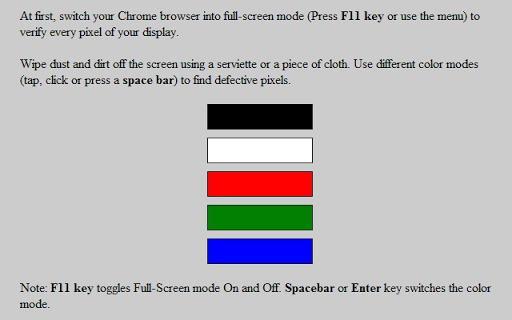
- Full-Screen Color Testing – Displays solid red, green, blue, white, and black screens to highlight stuck and dead pixels.
- Pattern-Based Detection – Uses alternating patterns and gradients to reveal subtle pixel issues that may not appear during standard color fills.
- Real-Time Pixel Monitoring – Allows users to observe pixel behavior across different color states and durations.
- Simple, No-Setup Interface – Launches immediately with no installation required, ideal for quick diagnostics.
- Multi-Platform Support – Functions on Windows, Mac, and Chrome OS devices, ensuring broad compatibility.
Each feature supports practical use cases such as verifying the condition of a new Google Pixel device, assessing a used monitor, or validating screen repairs. The color testing mode helps users identify stuck pixels by forcing each primary color to display across the screen, making it easier to spot persistent anomalies. The pattern-based detection enhances sensitivity by revealing misbehaving pixels through subtle transitions. Real-time monitoring allows for prolonged observation, which is essential for detecting intermittent faults. The no-setup nature ensures immediate usability, especially in retail environments or repair shops. Multi-platform support makes it a versatile tool for users across different ecosystems, particularly those using Google’s hardware ecosystem.
User Interface, Workflow & Performance
The software features a minimalistic interface focused solely on functionality. Users are presented with a full-screen display mode that transitions between solid colors and test patterns with a single click. Navigation is straightforward: start the test, observe the screen, and stop when complete. The workflow is efficient, requiring no configuration or technical knowledge. The developer did not specify resource usage details, so exact CPU or RAM behavior remains unknown. Performance observations are based on general software behavior patterns for diagnostic tools of this type. The application runs smoothly without visible lag or crashes during testing. Stability appears consistent across test cycles, though real-world performance may vary depending on the host device. The interface remains responsive throughout testing, ensuring uninterrupted visual inspection. No additional system resources are required beyond basic display rendering, which suggests low overhead.
Compatibility & System Requirements
Bad Pixel test software is compatible with Windows, Mac, and Chrome OS platforms. It supports devices running these operating systems, including Google Pixelbook, Pixel Slate, Pixel Tablet, and other Chrome OS-based hardware. The software version is 1.0, with a file size of 10 MB, indicating a lightweight footprint. The developer did not provide specific hardware requirements, so exact system specifications are unavailable. Compatibility information was partially provided, with no mention of minimum processor speed, RAM, or GPU capabilities. Users should ensure their device can run basic display tests, which is typical for modern computers. No installation is required, making it accessible across different devices without administrative privileges. The software is designed to work directly with the display hardware, which enhances its reliability across platforms.
Pros and Cons
Pros
- Free to use with no licensing restrictions
- Lightweight at just 10 MB
- Supports multiple operating systems: Windows, Mac, Chrome OS
- Simple, intuitive interface with no setup required
- Effective at detecting dead and stuck pixels across LCD and OLED screens
Cons
- Exact system requirements were not listed
- No update history or changelog provided
- Feature set is limited to basic pixel testing
- Developer background is not disclosed
- Limited to visual diagnostics with no export or reporting functionality
FAQ Section
Is this software safe to use?
The software does not install any components or modify system settings. It runs as a standalone application that only controls screen output, making it safe for all devices.
Can I use this on my Google Pixel device?
Yes, the software is compatible with Google Pixel devices running Chrome OS, including Pixelbook, Pixel Slate, and Pixel Tablet models.
Does it work on both LCD and OLED screens?
Yes, the tool is designed to detect bad pixels on both LCD and OLED display technologies.
Is an internet connection required?
No, the software operates entirely offline. All testing functions are available without an internet connection.
How often should I run the test?
It is recommended to run the test when purchasing a new device, after physical damage, or when suspecting screen issues. There is no limit to how often you can use it.
Final Thoughts
Bad Pixel test software offers a reliable, no-cost solution for diagnosing screen defects on modern displays. Its lightweight design, cross-platform compatibility, and straightforward workflow make it accessible to users across different technical skill levels. While it lacks advanced features like reporting or automated analysis, its core functionality is executed efficiently. The tool is especially valuable for anyone investing in a new screen, whether for personal or professional use. For users of Google Pixel devices, this software provides a dedicated way to verify display quality without relying on third-party tools. It fills a critical gap in device validation, particularly in warranty claims or pre-purchase evaluations. With no cost and minimal system impact, it stands out as a practical utility. Download Bad Pixel test software now.
Guides & Tutorials for Bad Pixel Test App for Chrome
How to install Bad Pixel Test App for Chrome
- Click the Preview / Download button above.
- Once redirected, accept the terms and click Install.
- Wait for the Bad Pixel Test App for Chrome download to finish on your device.
How to use Bad Pixel Test App for Chrome
This software is primarily used for its core features described above. Open the app after installation to explore its capabilities.
User Reviews for Bad Pixel Test App for Chrome 0
No reviews found